Why do we need UniSoc Driver?
The UniSoc Driver (also known as SPD Driver) is essential if you own a smartphone, tablet, or feature phone powered by a UniSoc chipset (formerly SpreadTrum). Without installing the correct UniSoc Driver on your Windows computer, your device may not be properly recognized when connected via USB.
Here are the main reasons why you need the UniSoc Driver:
- Device Detection & Connection: Many UniSoc devices are not automatically detected by Windows. The UniSoc Driver enables your computer to recognize the device and establish a stable USB connection.
- File Transfer: Once the driver is installed, you can easily transfer photos, videos, documents, music, and other files between your UniSoc phone/tablet and your Windows PC.
- Firmware Update & Flashing: The driver requires the Unisoc Flash Tool (SPD Flash Tool) to flash stock ROMs, custom ROMs, or update firmware on your device.
- Debugging & Development: Developers and advanced users need the UniSoc Driver for USB debugging, ADB commands, and other development-related tasks.
- Backup & Restore Data: It enables you to back up important data from your UniSoc device or restore it safely.
- Fix Connection Issues: If your UniSoc phone shows as "Unknown Device" in Device Manager, or doesn't appear in Device Manager at all, installing the correct UniSoc Driver usually resolves these issues.
Download UniSoc Driver for Windows
How to Install UniSoc Driver on Windows?
Follow the simple guidelines below to install the UniSoc Driver on your Windows PC:
- Download and extract the UniSoc Driver package on your computer. After extraction, you will find two installer files: DPInst32.exe and DPInst64.exe.
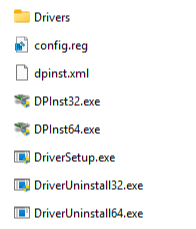
- Run the appropriate installer based on your Windows system type:
For 32-bit Windows → Double-click DPInst32.exe,
For 64-bit Windows → Double-click DPInst64.exe
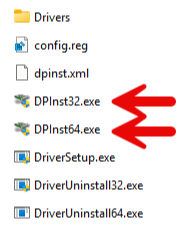
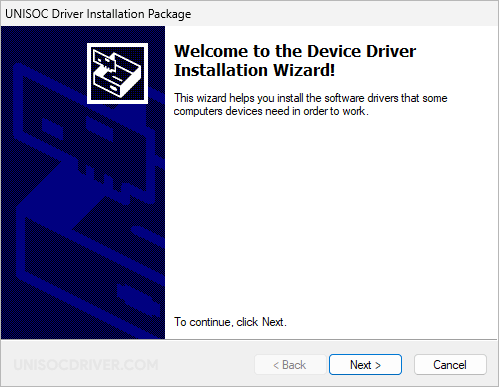
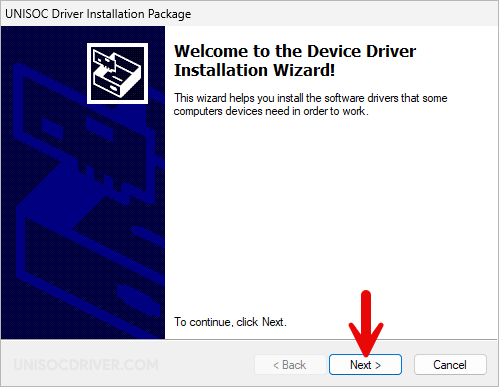
- Click Next in the Setup window that appears.
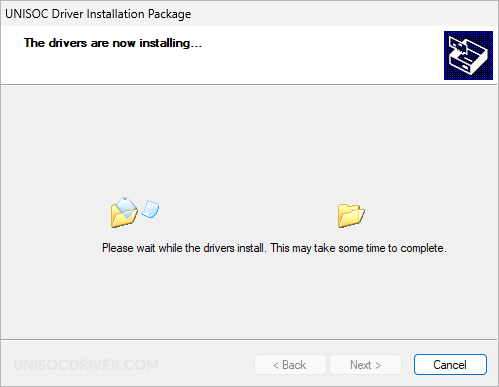
- The UniSoc Driver will now be installed on your computer. This process usually takes only a few seconds.
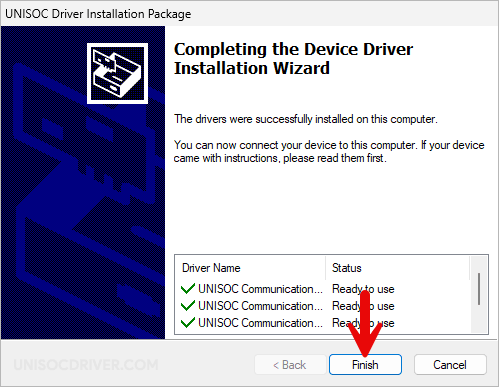
- Once the installation is complete, click Finish to close the Setup window.
- Restart your computer. After restarting, you can safely connect your UniSoc device to the computer using a USB cable.
UniSoc Driver – Help and Information
What is UniSoc Drivers?
The UniSoc Driver (also known as SPD Driver) is the official driver for UniSoc smartphones, feature phones, and tablets. It allows you to connect your UniSoc device to a Windows computer or laptop for easy file transfer, firmware updates, debugging, and data management.
For which platforms are UniSoc Drivers available?
The UniSoc Driver is available for all versions of Windows, from Windows XP to the latest Windows 11. It fully supports both 32-bit and 64-bit systems. It is not available for macOS or Linux.
Is UniSoc Driver free?
Yes. The UniSoc Driver is completely free. The UniSoc community officially releases it for all UniSoc smartphone, tablet, and feature phone users.
Is UniSoc Driver safe?
Yes. The UniSoc Driver is 100% safe when downloaded from official or trusted sources. Since UniSoc officially releases it, it poses no risk to your computer or mobile device.
How often is the UniSoc Driver updated?
There is no fixed update schedule for the UniSoc Driver. UniSoc releases updates whenever necessary to fix bugs, improve device compatibility, or enhance overall performance. All official updates come directly from UniSoc sources.
How can I install UniSoc Driver?
You can install the UniSoc Driver by downloading the .exe installer file and running it on your Windows computer. The installation process is similar to that of a standard Windows application. Follow the step-by-step guide on the How to Install UniSoc Driver page for correct installation.
What devices does UniSoc Driver work with?
The UniSoc Driver is specifically designed for devices powered by UniSoc chipsets, including smartphones and tablets running Android. It fully supports all UniSoc devices. It may not work properly with devices from other chipset manufacturers, such as MediaTek or Qualcomm.
Does UniSoc Driver require an internet connection to use?
No. The UniSoc Driver does not require an internet connection. Once installed, you can connect your UniSoc device to the computer using a USB cable and start using it immediately.
Can I view the contents on my device with the UniSoc Driver?
Yes. After installing the driver and connecting your device via USB, you can easily browse, transfer, copy, and manage files on your UniSoc device from your computer. It also helps with data backup and installing applications.
Does the UniSoc Driver work with both mobile and desktop devices?
The UniSoc Driver is installed on your Windows PC or laptop (desktop/laptop). It enables smooth communication between your computer and your UniSoc mobile device. You must have a UniSoc-powered smartphone or tablet to use it.
Where can I find the SPD Flash Tool?
You can download the SPD Flash Tool (also known as SPD Upgrade Tool or Unisoc Flash Tool) from the website.